How to Highlight the Current Menu Item with Custom Logic
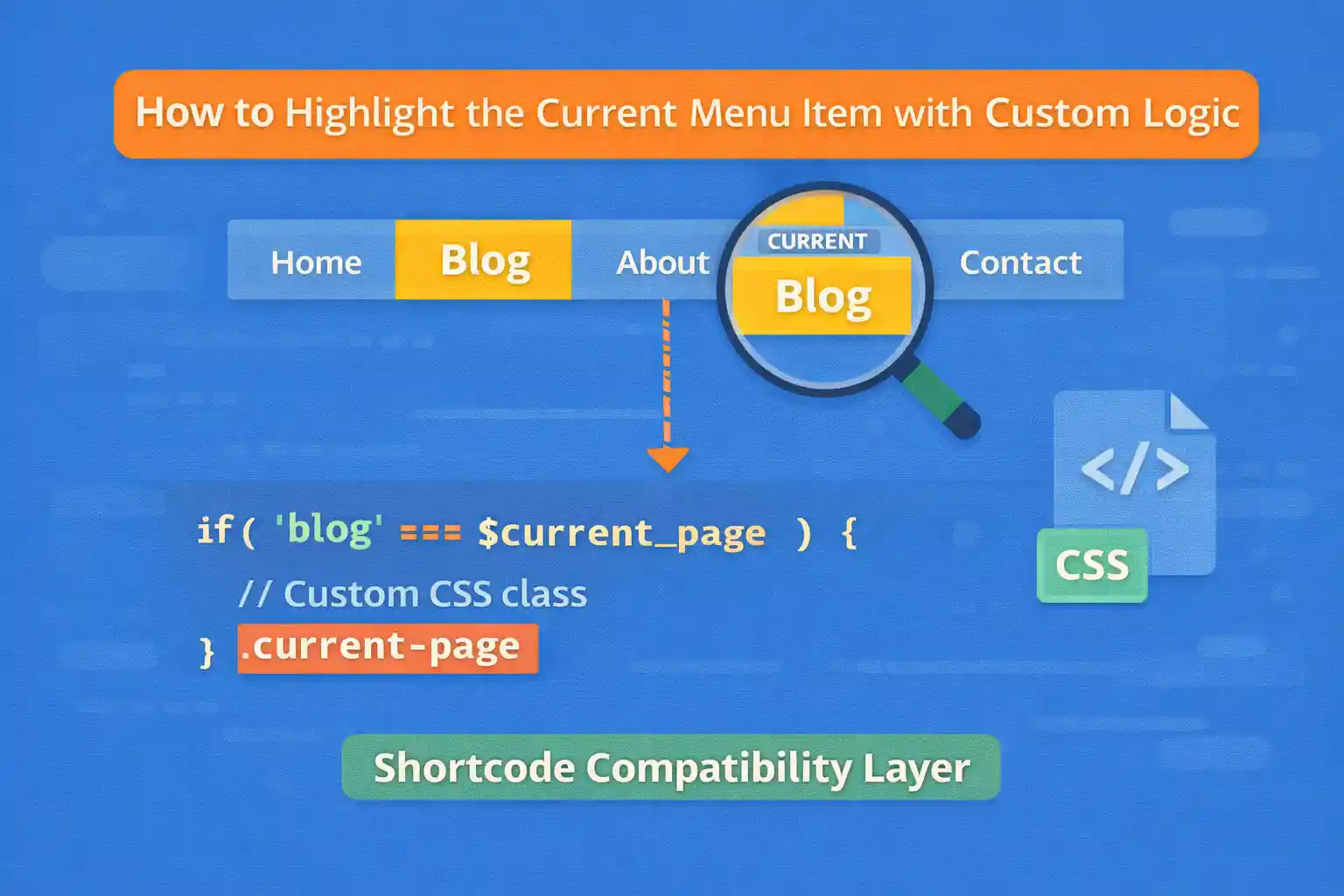
WordPress automatically adds classes like current-menu-item or current-menu-ancestor to navigation menus — but in real projects, that’s often not enough.
You may want to:
- Highlight a menu item based on a Custom Post Type
- Keep a parent menu active across multiple related pages
- Highlight a menu item based on taxonomy, query vars, or URL patterns
This guide shows practical, safe ways to add custom logic for highlighting the current menu item in WordPress.
How WordPress Highlights Menu Items by Default
By default, WordPress adds CSS classes like:
current-menu-itemcurrent-menu-parentcurrent-menu-ancestorcurrent_page_item
These work well for simple page hierarchies, but they break down when:
- You use Custom Post Types
- You mix archives, singles, and taxonomies
- You need cross-section highlighting
Approach 1: Highlight Menu Item for a Custom Post Type
Common requirement: keep a menu item active for both the CPT archive and single posts.
Example Scenario
- Menu item URL:
/events/ - Custom Post Type:
event
Add a Custom Menu Class via nav_menu_css_class
add_filter( 'nav_menu_css_class', function( $classes, $item ) {

  if ( is_post_type_archive( 'event' ) || is_singular( 'event' ) ) {

    if ( $item->url === get_post_type_archive_link( 'event' ) ) {
      $classes[] = 'is-current';
    }

  }

  return $classes;

}, 10, 2 );
Now you can style .is-current in CSS.
Approach 2: Highlight Parent Menu for Related Sections
Sometimes you want a single menu item highlighted across multiple page types.
Example
/docs//docs/getting-started//docs/api/
Custom Logic Based on URL Prefix
add_filter( 'nav_menu_css_class', function( $classes, $item ) {

  if ( strpos( $_SERVER['REQUEST_URI'], '/docs/' ) === 0 ) {

    if ( strpos( $item->url, '/docs/' ) !== false ) {
      $classes[] = 'is-current';
    }

  }

  return $classes;

}, 10, 2 );
This is useful for documentation or knowledge-base sections.
Approach 3: Highlight Menu Item Based on Taxonomy
You may want a menu item active when viewing a taxonomy term or a post inside that taxonomy.
Example
- Taxonomy:
product_cat - Menu item URL:
/products/
add_filter( 'nav_menu_css_class', function( $classes, $item ) {

  if ( is_tax( 'product_cat' ) || is_singular( 'product' ) ) {

    if ( strpos( $item->url, '/products/' ) !== false ) {
      $classes[] = 'is-current';
    }

  }

  return $classes;

}, 10, 2 );
This keeps navigation consistent across product listings and detail pages.
Approach 4: Highlight Menu Item Using Query Context (Advanced)
For complex logic, you can inspect the main query.
add_filter( 'nav_menu_css_class', function( $classes, $item ) {

  if ( is_search() && $item->url === home_url( '/search/' ) ) {
    $classes[] = 'is-current';
  }

  if ( is_404() && $item->url === home_url( '/' ) ) {
    $classes[] = 'is-current';
  }

  return $classes;

}, 10, 2 );
This is helpful when menu state depends on behavior rather than URL.
Approach 5: Add a Custom “Section” Class Once, Style Everywhere
Instead of complex menu logic, you can add a body class and style menus via CSS.
Add Body Class
add_filter( 'body_class', function( $classes ) {

  if ( is_singular( 'event' ) || is_post_type_archive( 'event' ) ) {
    $classes[] = 'section-events';
  }

  return $classes;

} );
CSS Example
.section-events .menu-item-events {
  color: #0073aa;
}
This approach scales well for large sites.
CSS Example for Highlighting
.menu-item.is-current > a {
  color: #0073aa;
  font-weight: 600;
  text-decoration: underline;
}
Avoid relying only on color — use weight or decoration for accessibility.
Common Mistakes to Avoid
- Overwriting WordPress default classes instead of extending them
- Hardcoding menu item IDs (they change between environments)
- Relying only on URL strings without context checks
- Adding heavy logic inside menu walkers unnecessarily
When to Use Each Approach
- CPT-based highlighting: Use conditional tags
- Section-wide highlighting: Use URL or body class logic
- Complex rules: Use query context
- Large sites: Body class + CSS is often best
Conclusion
WordPress’s default menu highlighting works for simple sites, but real-world projects often need custom logic. By extending menu classes with filters like nav_menu_css_class, you can keep navigation clear, predictable, and user-friendly — even across complex content structures.
Key takeaway:
Don’t fight WordPress’s menu system. Extend it with small, targeted logic and keep styling in CSS.
🎨 Want to learn more? Visit our WordPress Customization Hub for tips and advanced techniques.


















