How to Add Icons to WordPress Menus (SVG Friendly)
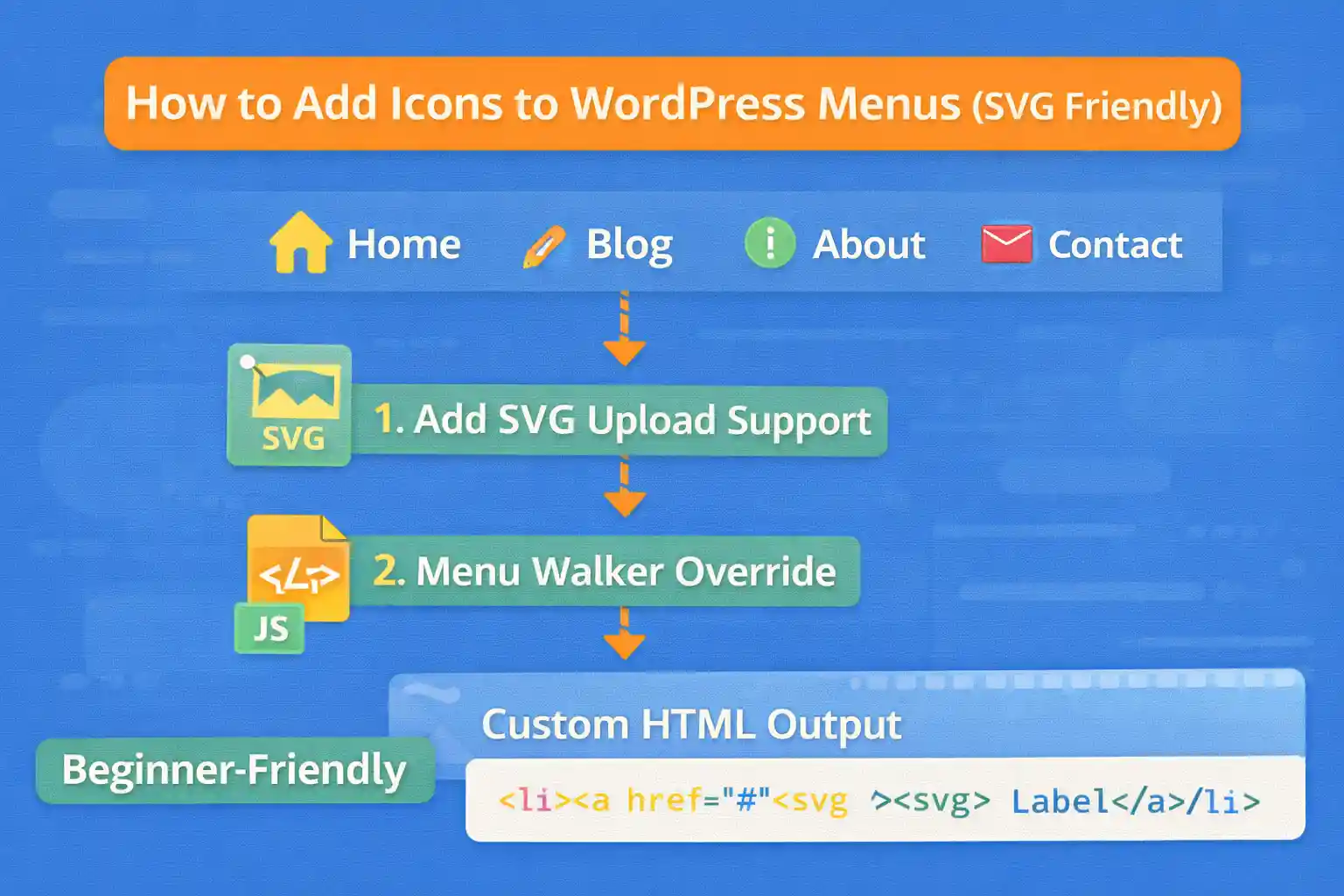
Adding icons to navigation menus can improve usability, especially on mobile. But doing it the wrong way can cause accessibility issues, inconsistent styling, and SVG problems.
This guide shows clean, SVG-friendly ways to add icons to WordPress menus without a plugin, including:
- Adding icons via menu item CSS classes (recommended)
- Outputting inline SVG safely (SVG-friendly)
- Adding icons via a custom field on menu items (advanced)
Approach 1 (Recommended): Add Icon Classes to Menu Items
This method is fast, stable, and works with inline SVG via CSS masks or background images. It also avoids modifying menu HTML output.
Step 1: Enable “CSS Classes” in the Menu Screen
Go to:
- Appearance → Menus
- Open Screen Options (top right)
- Enable CSS Classes
Now each menu item has a “CSS Classes” field.
Step 2: Add Icon Classes to Menu Items
Example classes:
has-icon icon-homehas-icon icon-bloghas-icon icon-contact
Step 3: Add CSS to Render Icons
This example uses a pseudo-element and SVG as a mask (great for SVG color control).
.menu a {
  display: inline-flex;
  align-items: center;
  gap: 8px;
}

.menu .has-icon > a::before {
  content: "";
  width: 1em;
  height: 1em;
  display: inline-block;
  background-color: currentColor;
  mask-repeat: no-repeat;
  mask-position: center;
  mask-size: contain;
}

.menu .icon-home > a::before {
  mask-image: url("/wp-content/themes/your-theme/assets/icons/home.svg");
}

.menu .icon-blog > a::before {
  mask-image: url("/wp-content/themes/your-theme/assets/icons/blog.svg");
}

.menu .icon-contact > a::before {
  mask-image: url("/wp-content/themes/your-theme/assets/icons/contact.svg");
}
Why this is SVG-friendly: using mask-image with background-color: currentColor means the icon automatically matches your text color.
Approach 2: Inline SVG Icons in Menu Markup (SVG-Friendly)
If you want maximum control (hover transitions, no external requests, full styling), inline SVG is best.
The cleanest method is to inject SVG into menu item output using the nav_menu_item_title filter.
Step 1: Add Icon Classes (Same as Approach 1)
Use menu item classes like:
icon-homeicon-blog
Step 2: Add a Function That Returns SVG by Key
Place the SVG files in your theme directory (example: /assets/icons/).
function wpcodetips_get_menu_svg_icon( $key ) {

  $map = array(
    'home'    => 'home.svg',
    'blog'    => 'blog.svg',
    'contact' => 'contact.svg',
  );

  if ( ! isset( $map[ $key ] ) ) {
    return '';
  }

  $file = get_stylesheet_directory() . '/assets/icons/' . $map[ $key ];
  if ( ! file_exists( $file ) ) {
    return '';
  }

  $svg = file_get_contents( $file );
  if ( ! is_string( $svg ) || $svg === '' ) {
    return '';
  }

  return $svg;
}
Step 3: Inject Inline SVG into the Menu Title
This checks menu item classes for icon-*, loads the matching SVG, and prepends it to the link text.
add_filter( 'nav_menu_item_title', function( $title, $item, $args, $depth ) {

  if ( empty( $item->classes ) || ! is_array( $item->classes ) ) {
    return $title;
  }

  $icon_key = '';

  foreach ( $item->classes as $class ) {
    if ( strpos( $class, 'icon-' ) === 0 ) {
      $icon_key = substr( $class, 5 );
      break;
    }
  }

  if ( $icon_key === '' ) {
    return $title;
  }

  $svg = wpcodetips_get_menu_svg_icon( $icon_key );
  if ( $svg === '' ) {
    return $title;
  }

  $svg = preg_replace( '/<svg\b/', '<svg class="menu-icon" aria-hidden="true" focusable="false"', $svg, 1 );

  return $svg . '<span class="menu-label">' . esc_html( wp_strip_all_tags( $title ) ) . '</span>';

}, 10, 4 );
Step 4: Style the Inline SVG
.menu a {
  display: inline-flex;
  align-items: center;
  gap: 8px;
}

.menu .menu-icon {
  width: 1em;
  height: 1em;
  display: inline-block;
  fill: currentColor;
}
Accessibility note: We set aria-hidden="true" so screen readers don’t announce decorative icons.
Approach 3: Add Icons via a Custom Field on Menu Items (Advanced)
If you want to select icons in the admin UI (instead of typing classes), you can add a custom field to menu items and store an icon key.
High-level idea:
- Add a menu item meta field for icon key
- Save it with
wp_update_nav_menu_item - Inject SVG in
nav_menu_item_title
This is more work, but scales well for non-technical editors.
Common Pitfalls (And How to Avoid Them)
- Using icon fonts: extra requests, FOIT/FOUT, and often heavier than SVG
- Putting icons inside the label text: messy and hard to maintain
- Forgetting accessibility: decorative icons should be
aria-hidden - Inlining untrusted SVG: only load SVG files you control
Best Practice Summary
- Use menu item CSS classes to assign icons
- Use CSS masks for simple, color-adaptive icons
- Use inline SVG injection for maximum control
- Keep icons decorative unless they carry meaning
Conclusion
Adding SVG-friendly icons to WordPress menus is easiest with CSS classes + masks, and most flexible with inline SVG injection. Both approaches keep your menu system clean, scalable, and easy to maintain — without relying on plugins.
Key takeaway:
Assign icons via menu item classes, then render them using CSS masks or safe inline SVG injection for a modern, lightweight solution.
🎨 Want to learn more? Visit our WordPress Customization Hub for tips and advanced techniques.


















