How to Add Estimated Reading Time to Posts (WordPress)
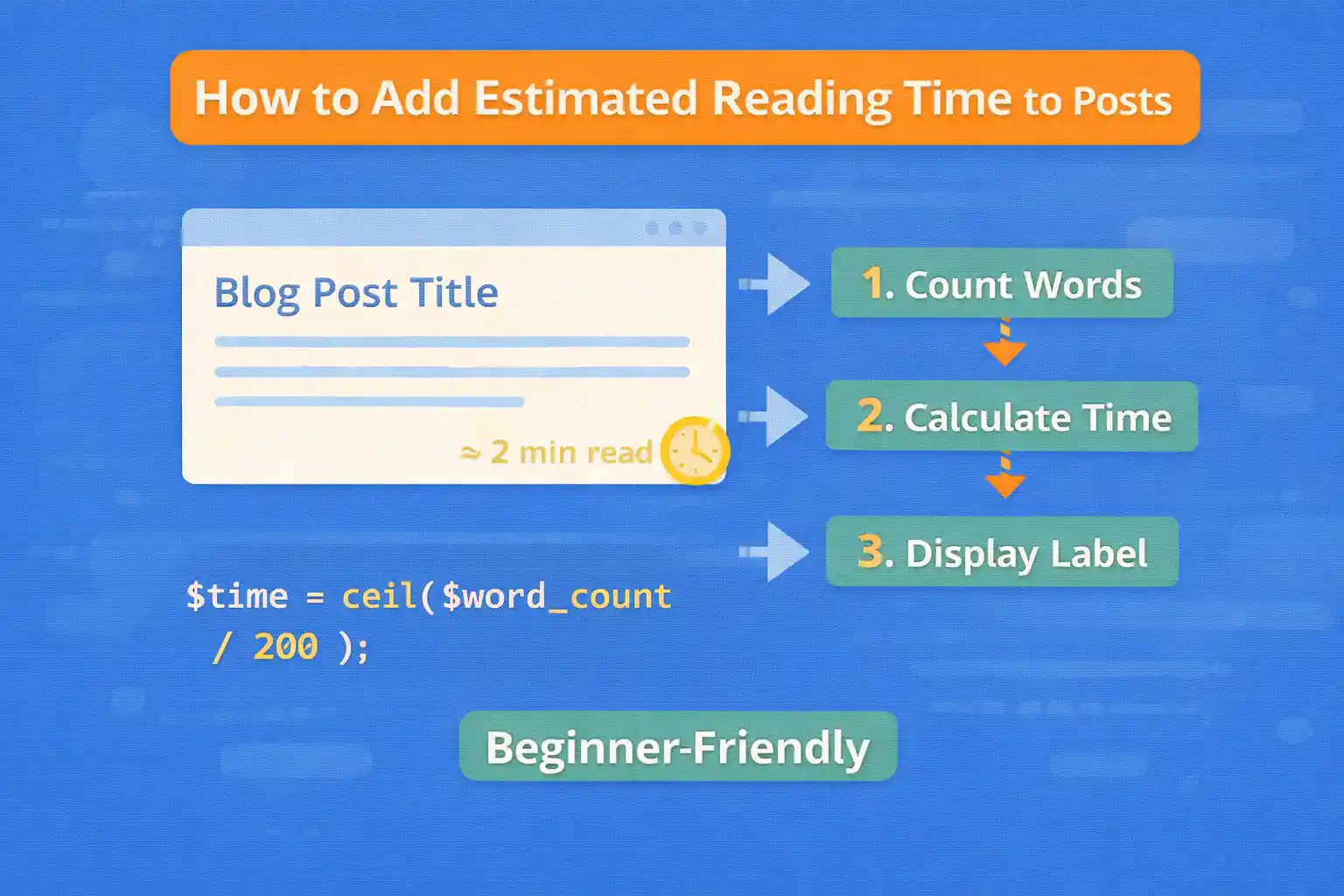
Estimated reading time helps users decide whether to start reading an article and can improve engagement, especially on content-heavy blogs. The good news is that you can add it to WordPress without a plugin, using a small and reliable snippet.
This guide shows how to calculate reading time, display it safely, and integrate it cleanly into your theme.
Why Estimated Reading Time Is Useful
- Sets clear expectations for readers
- Improves UX on long-form content
- Commonly used by professional blogs and media sites
- Easy to implement with minimal overhead
How Reading Time Is Calculated
The standard approach is:
- Average reading speed: 200–250 words per minute
- Count the words in the post content
- Divide by the reading speed
- Round up to the nearest minute
Example:
- 850 words ÷ 200 WPM ≈ 4.25 → 5 min read
Step 1: Create a Reading Time Helper Function
Add this function to functions.php (or a utility file).
function wpcodetips_get_reading_time( $post_id = null, $wpm = 200 ) {

  $post = get_post( $post_id );
  if ( ! $post ) {
    return '';
  }

  $content = $post->post_content;

  // Remove shortcodes and HTML
  $content = strip_shortcodes( $content );
  $content = wp_strip_all_tags( $content );

  $word_count = str_word_count( $content );
  if ( $word_count === 0 ) {
    return '';
  }

  $minutes = (int) ceil( $word_count / max( 1, (int) $wpm ) );

  return sprintf(
    _n( '%d min read', '%d mins read', $minutes, 'textdomain' ),
    $minutes
  );
}
Why this is safe:
- Ignores HTML and shortcodes
- Handles empty content gracefully
- Avoids division edge cases
Step 2: Display Reading Time in a Template
You can output reading time anywhere inside the Loop.
Example: Single Post Header
<?php
$reading_time = wpcodetips_get_reading_time();

if ( $reading_time ) : ?>
  <span class="reading-time">
    <?php echo esc_html( $reading_time ); ?>
  </span>
<?php endif; ?>
Common placements:
- Below the post title
- Next to the publish date
- At the top of the content
Step 3: Add Basic Styling (Optional)
.reading-time {
  font-size: 0.875rem;
  color: #666;
  margin-left: 8px;
  white-space: nowrap;
}
Keep it subtle — reading time is helpful, not dominant.
Show Reading Time Only on Single Posts
If you want to limit it to single posts:
if ( is_singular( 'post' ) ) {
  echo esc_html( wpcodetips_get_reading_time() );
}
Adjust Reading Speed (Advanced)
You can tune the words-per-minute value depending on your audience.
- Technical content: 180–200 WPM
- General blog content: 200–230 WPM
- Light content: 240–260 WPM
Example:
echo esc_html( wpcodetips_get_reading_time( get_the_ID(), 220 ) );Exclude Certain Content Types
You may not want reading time on short posts or announcements.
if ( is_singular( 'post' ) && str_word_count( wp_strip_all_tags( get_the_content() ) ) > 300 ) {
  echo esc_html( wpcodetips_get_reading_time() );
}
Common Mistakes to Avoid
- Counting HTML tags or shortcodes as words
- Showing “0 min read” on short posts
- Hardcoding reading time instead of calculating it
- Displaying it everywhere (archives, widgets) without context
Optional Enhancement Ideas
- Add an
🎨 Want to learn more? Visit our WordPress Customization Hub for tips and advanced techniques.


















