How to Display “Last Updated” Date Instead of Publish Date in WordPress
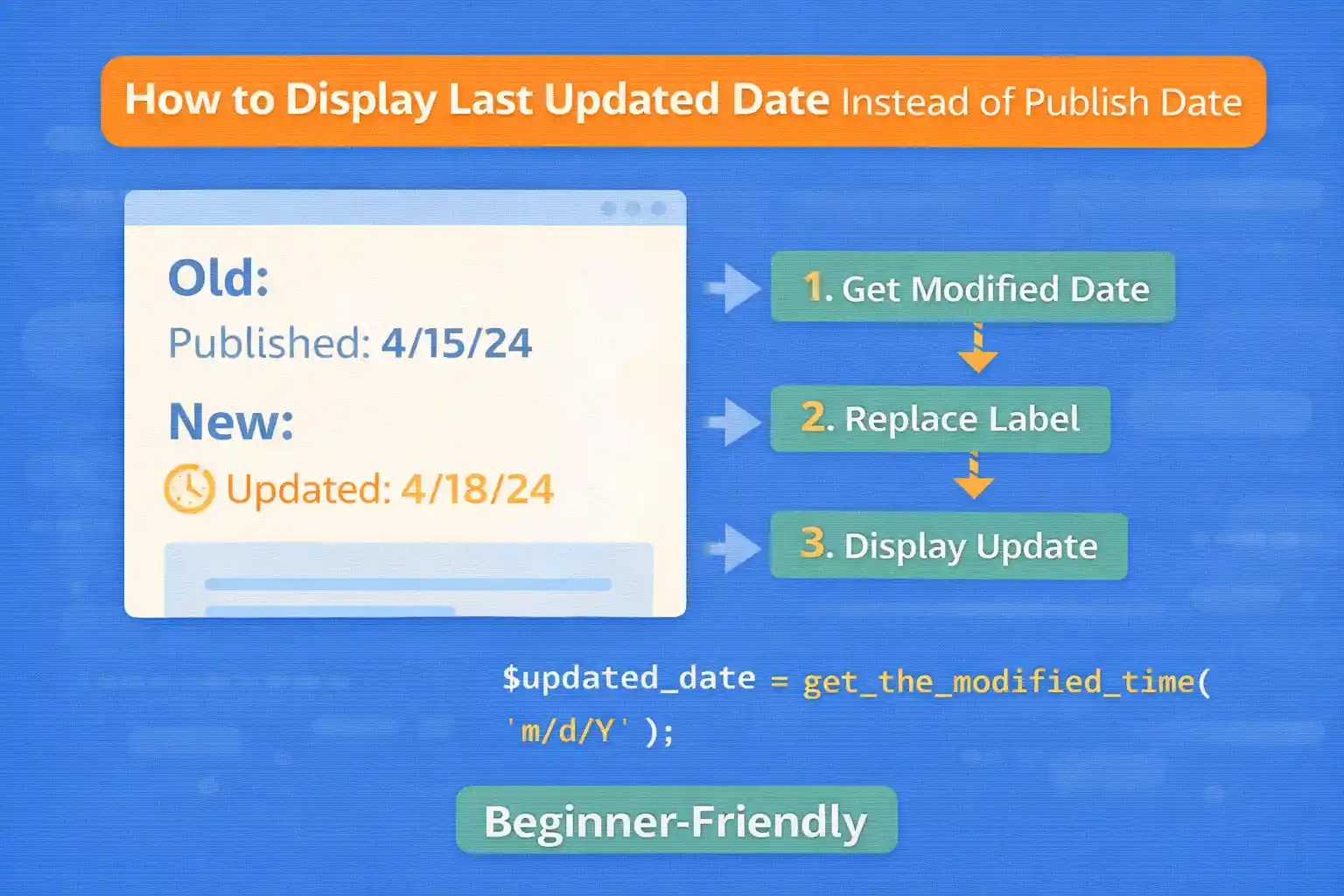
If you regularly update content, showing the “Last Updated” date can be more useful than the original publish date. It tells readers (and sometimes search engines) that the content is maintained.
This guide shows a clean, code-based way to display the last updated date, with optional logic such as “only show updated date if it differs from publish date.”
Option 1: Always Display the Last Updated Date
Use get_the_modified_date() in your template (single.php, content template, etc.).
<time class="post-date" datetime="<?php echo esc_attr( get_the_modified_date( 'c' ) ); ?>">
  Last updated: <?php echo esc_html( get_the_modified_date( 'F j, Y' ) ); ?>
</time>
This always shows the modified date, even when it’s the same as the publish date.
Option 2 (Recommended): Show “Last Updated” Only If the Post Was Actually Updated
Many posts are “modified” due to minor edits or auto-saves. A practical approach is to show updated date only when it differs from publish date.
<?php
$published = get_the_date( 'U' );
$modified  = get_the_modified_date( 'U' );

if ( $modified > $published ) : ?>

  <time class="post-date post-date--updated" datetime="<?php echo esc_attr( get_the_modified_date( 'c' ) ); ?>">
    Last updated: <?php echo esc_html( get_the_modified_date( 'F j, Y' ) ); ?>
  </time>

<?php else : ?>

  <time class="post-date post-date--published" datetime="<?php echo esc_attr( get_the_date( 'c' ) ); ?>">
    Published: <?php echo esc_html( get_the_date( 'F j, Y' ) ); ?>
  </time>

<?php endif; ?>
This prevents “Last updated” from appearing on posts that haven’t meaningfully changed.
Option 3: Replace Publish Date Everywhere via Filters
If your theme outputs dates using the_date() or get_the_date() and you want to force modified date globally, you can filter it.
Warning: This can have unexpected side effects, especially on archives and date-based pages. Use carefully.
add_filter( 'get_the_date', function( $the_date, $format, $post ) {

  if ( is_admin() ) return $the_date;

  // Only change on single posts (adjust post types as needed).
  if ( ! is_singular( 'post' ) ) return $the_date;

  $modified = get_the_modified_date( $format, $post );
  return $modified;

}, 10, 3 );
Most sites should prefer template-level control (Option 2) instead of global filtering.
Option 4: Output Both Published and Updated Dates (Best for Transparency)
Some sites show both dates, but only when the post was updated.
<?php
$published = get_the_date( 'U' );
$modified  = get_the_modified_date( 'U' );
?>

<time class="post-date post-date--published" datetime="<?php echo esc_attr( get_the_date( 'c' ) ); ?>">
  Published: <?php echo esc_html( get_the_date( 'F j, Y' ) ); ?>
</time>

<?php if ( $modified > $published ) : ?>
  <time class="post-date post-date--updated" datetime="<?php echo esc_attr( get_the_modified_date( 'c' ) ); ?>">
    Updated: <?php echo esc_html( get_the_modified_date( 'F j, Y' ) ); ?>
  </time>
<?php endif; ?>
Where to Place the Code
- Single posts:
single.phportemplate-parts/content-single.php - Archives:
archive.phporcontent.phpif you want updated dates in listings
If you show updated dates in archives, consider showing only publish date there to avoid clutter.
Optional Styling
.post-date {
  font-size: 0.875rem;
  color: #666;
  margin-right: 12px;
}

.post-date--updated {
  font-weight: 600;
}
Common Mistakes to Avoid
- Showing “Last updated” even when publish and modified dates are identical
- Using global filters that break date archives or structured theme logic
- Forgetting the
datetimeattribute (use ISOcformat)
Conclusion
Displaying the last updated date is a simple but powerful improvement for content-heavy sites. The best approach is usually to show “Last updated” only when the post has actually been modified, and fall back to “Published” otherwise.
Key takeaway:
Use get_the_modified_date() and compare timestamps so you only show “Last updated” when it matters.
🎨 Want to learn more? Visit our WordPress Customization Hub for tips and advanced techniques.


















