How to Remove Unused WordPress CSS (block-library, global-styles)
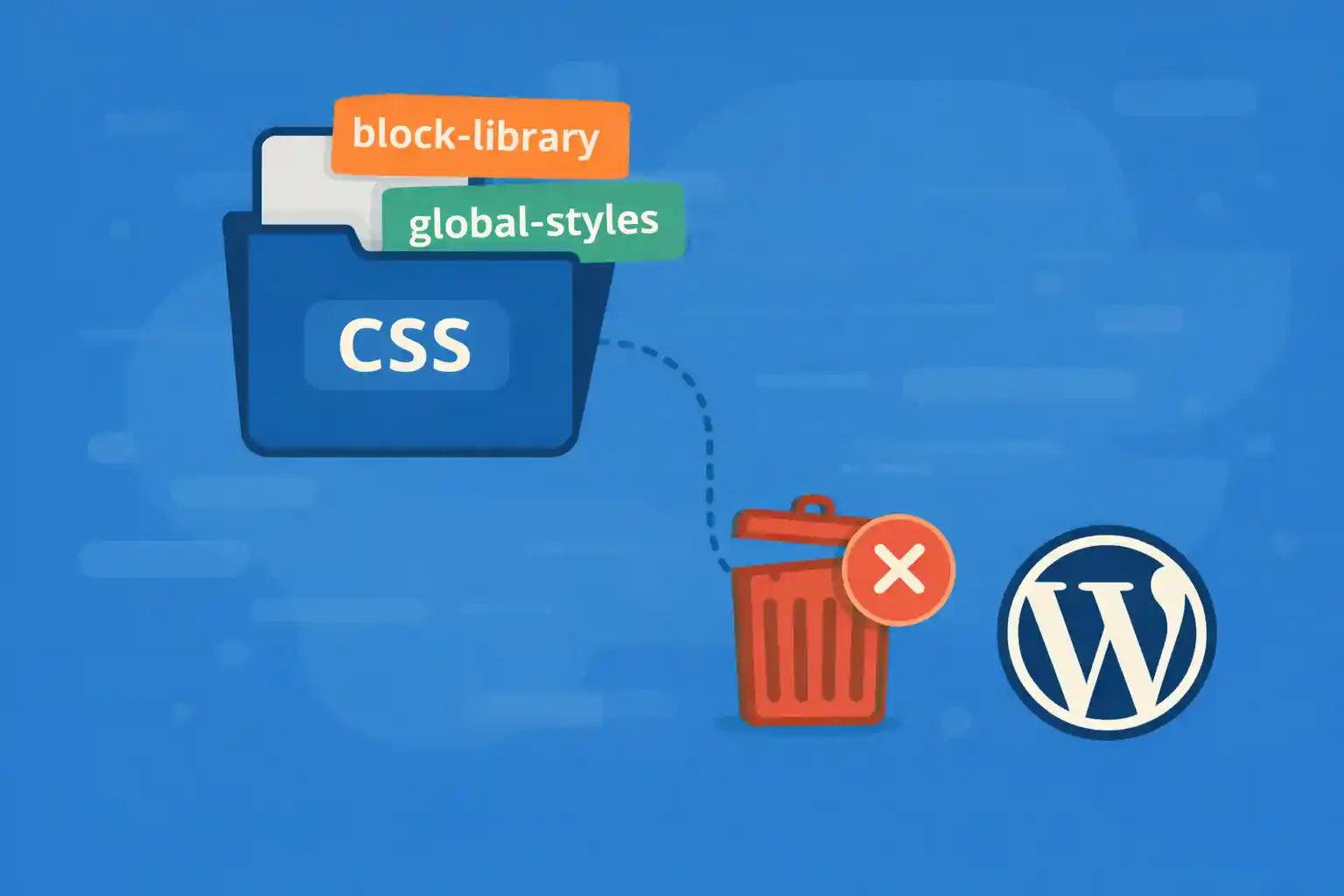
WordPress loads several default CSS files on the front end, even when you are not using
Gutenberg blocks. The most common offenders are block-library and
global-styles.
While these styles are useful for block-based themes, they often become
unused CSS in custom or classic themes and negatively impact
LCP, CLS, and overall Core Web Vitals.
This article explains how to safely remove unused WordPress CSS
using code-based approaches, when you should (and should not) do it,
and how to avoid breaking future updates.
What Are block-library and global-styles?
block-library
wp-block-library is the default stylesheet for Gutenberg blocks.
It includes styles for:
- Paragraphs
- Buttons
- Columns
- Embeds
- Galleries
It is enqueued on the front end regardless of whether blocks are actually used.
global-styles
global-styles-inline-css is generated from theme.json.
It defines CSS variables, color presets, spacing, and typography rules.
If your theme does not rely on theme.json, this CSS is often completely unused.
When You Should Remove These CSS Files
- Classic themes (no block templates)
- Custom themes with handcrafted CSS
- Sites not using Gutenberg blocks in content
If you are using a block theme or editor styles heavily,
do not remove them blindly.
Recommended Method: Dequeue Styles Properly
Never remove CSS by editing core files.
Instead, dequeue styles at the correct hook timing.
Remove wp-block-library
<?php
add_action( 'wp_enqueue_scripts', function () {
  wp_dequeue_style( 'wp-block-library' );
  wp_dequeue_style( 'wp-block-library-theme' );
}, 100 );
Why priority 100?
- Ensures core styles are enqueued first
- Prevents race conditions with plugins
Remove global-styles
<?php
add_action( 'wp_enqueue_scripts', function () {
  wp_dequeue_style( 'global-styles' );
}, 100 );
This removes the inline CSS generated from theme.json.
Prevent Block CSS from Loading at All (Stricter)
If you want to fully disable block assets site-wide:
<?php
add_filter( 'should_load_block_editor_assets', '__return_false' );
Use this only if:
- You do not use blocks anywhere
- You control all CSS manually
Conditional Removal (Safer for Mixed Sites)
If some pages still use blocks, remove CSS only where unnecessary.
<?php
add_action( 'wp_enqueue_scripts', function () {
  if ( is_page_template( 'templates/landing.php' ) ) {
    wp_dequeue_style( 'wp-block-library' );
    wp_dequeue_style( 'global-styles' );
  }
}, 100 );
This avoids breaking block-based pages.
Admin vs Front End
Do not remove block CSS in the admin area.
<?php
if ( is_admin() ) {
  return;
}
Block styles are required for the editor UI.
Common Mistakes to Avoid
- Using
remove_actionon core enqueue functions - Removing styles without checking editor usage
- Disabling block assets globally on mixed-content sites
How to Verify CSS Is Truly Unused
- Chrome DevTools → Coverage tab
- PageSpeed Insights → Unused CSS audit
- Lighthouse → Reduce unused CSS
Do not rely on file size alone.
Focus on render-blocking impact.
SEO & Performance Impact
Removing unused WordPress CSS can:
- Reduce render-blocking time
- Improve LCP
- Lower total CSS bytes
However, removing required styles can cause layout breakage,
which negatively affects user experience and SEO.
Best Practice Summary
- Use
wp_dequeue_style, not file edits - Apply late priority (
100) - Remove globally only if blocks are unused
- Prefer conditional removal for safety
Conclusion
Unused CSS from block-library and global-styles
is a common performance issue in WordPress.
With careful dequeue logic and a clear understanding of your theme structure,
you can remove unnecessary styles safely and achieve measurable improvements
in Core Web Vitals without relying on plugins.
🎨 Want to learn more? Visit our WordPress Customization Hub for tips and advanced techniques.


















