Critical CSS: Manual vs Plugin Approach
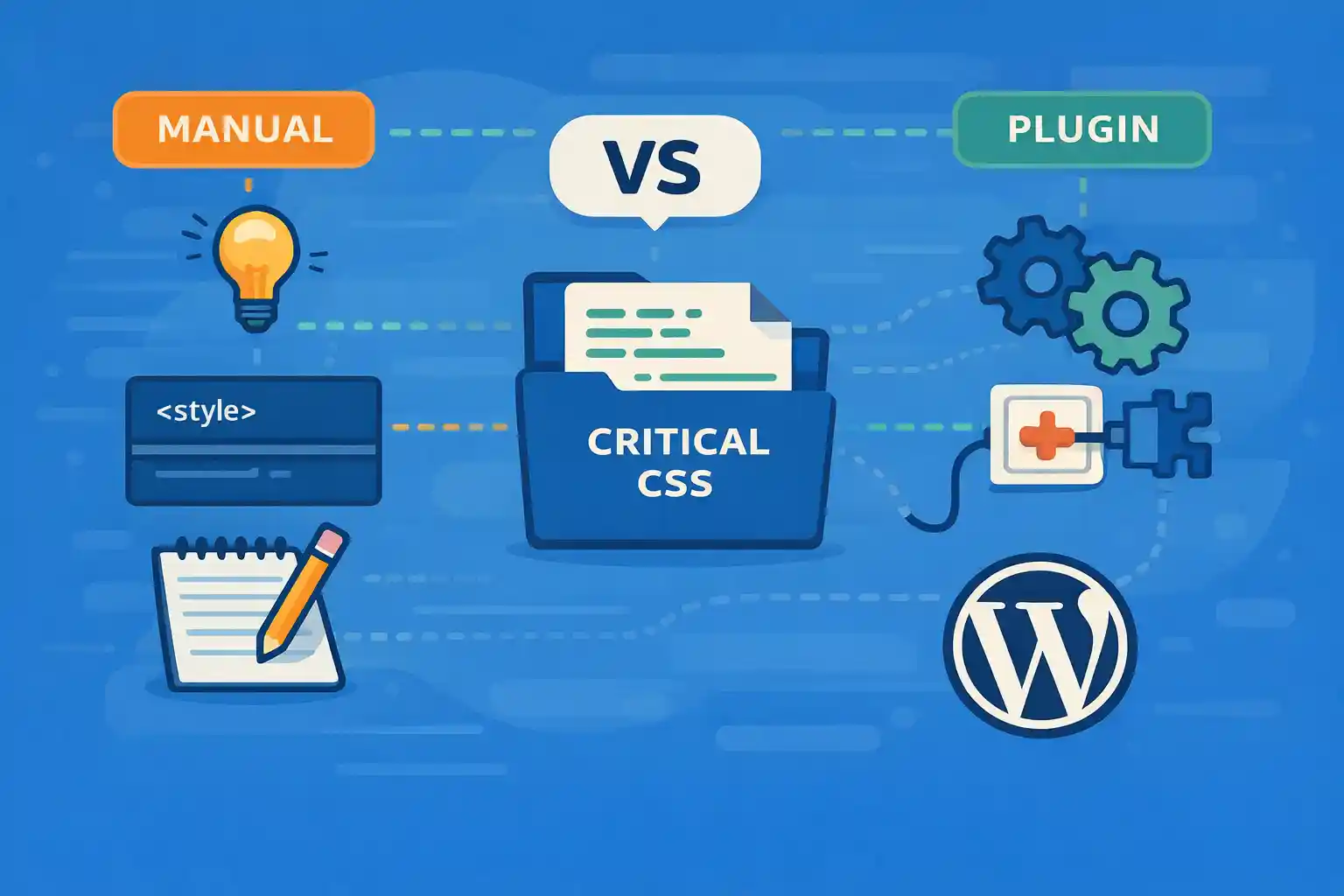
Critical CSS is the subset of CSS required to render above-the-fold content.
Inlining it in the document <head> can reduce render-blocking CSS and improve
Core Web Vitals (especially LCP), but it also introduces trade-offs:
maintenance cost, risk of FOUC, and caching complexity.
This guide compares a manual Critical CSS workflow vs plugin-based generation,
and shows a safe hybrid approach that works well for production WordPress sites.
What “Critical CSS” Actually Solves
On most WordPress sites, your main stylesheet blocks rendering until it is downloaded and parsed.
Critical CSS changes the order:
- Inline the minimal CSS needed for above-the-fold
- Load the full stylesheet in a non-blocking way
- Avoid layout jumps by keeping critical layout rules inline
If your site is already fast, adding Critical CSS can be unnecessary complexity.
But on image-heavy homepages or large themes, it can be a meaningful win.
Manual Critical CSS Approach
How It Works
- You manually extract the CSS needed for the initial viewport
- You inline it in
wp_headorheader.php - You defer the full stylesheet load
Pros
- Maximum control (exact CSS, exact pages)
- No plugin dependency
- Often the smallest possible critical CSS output
Cons
- High maintenance (theme changes require updates)
- Easy to miss edge cases (fonts, breakpoints, logged-in bars)
- Risk of FOUC if the deferred stylesheet arrives late
Safe Manual Implementation (Inline + Deferred Stylesheet)
This pattern uses media="print" switching. It is widely used and works without JavaScript frameworks.
<?php
add_action( 'wp_head', function () {
  // 1) Inline critical CSS (keep it small)
  $critical = '';
  $path = get_stylesheet_directory() . '/assets/css/critical.css';

  if ( is_readable( $path ) ) {
    $critical = file_get_contents( $path );
  }

  if ( $critical ) {
    echo '<style id="critical-css">' . wp_strip_all_tags( $critical ) . '</style>';
  }
}, 1 );

add_action( 'wp_enqueue_scripts', function () {
  // 2) Enqueue main stylesheet normally
  wp_enqueue_style(
    'theme-style',
    get_stylesheet_directory_uri() . '/assets/css/style.css',
    array(),
    '1.0.0'
  );
}, 20 );

add_filter( 'style_loader_tag', function ( $html, $handle, $href, $media ) {
  if ( 'theme-style' !== $handle ) {
    return $html;
  }

  // 3) Convert to non-blocking load
  $href_attr  = esc_url( $href );
  $media_attr = $media ? esc_attr( $media ) : 'all';

  return '<link rel="stylesheet" href="' . $href_attr . '" media="print" onload="this.media=\'' . $media_attr . '\'">'
    . '<noscript><link rel="stylesheet" href="' . $href_attr . '" media="' . $media_attr . '"></noscript>';
}, 10, 4 );
Notes:
- Keep
critical.cssas small as possible (layout, typography, header/hero) - Do not inline large CSS bundles (it can hurt TTFB and caching efficiency)
- The
<noscript>fallback is important
Plugin Critical CSS Approach
How It Works
- A plugin generates critical CSS automatically (often per URL or template)
- It updates when theme/CSS changes
- It may also handle unused CSS removal and caching rules
Pros
- Low maintenance (critical CSS regenerates automatically)
- Works well for large sites with many templates
- Often includes extra performance tooling (delay JS, remove unused CSS)
Cons
- Generated CSS can be larger than necessary
- Sometimes inaccurate (dynamic elements, A/B tests, user states)
- Regeneration can be slow or conflict with caching/CDN setups
Which Should You Choose?
Manual Is Best When
- You have a small number of templates (home, single, page)
- You control the theme and CSS architecture
- You want minimal dependencies and maximum precision
Plugin Is Best When
- You have many page types and frequent content changes
- Multiple people edit design/CSS often
- You need “good enough” performance wins with less engineering time
Recommended Hybrid Strategy (Production-Friendly)
A practical strategy for WordPress is:
- Manual critical CSS for the homepage + key landing pages
- Normal stylesheet loading for everything else
- Optionally use a plugin only for pages you do not want to maintain manually
Conditional Manual Critical CSS by Template
<?php
add_action( 'wp_head', function () {
  if ( ! ( is_front_page() || is_page_template( 'templates/landing.php' ) ) ) {
    return;
  }

  $file = is_front_page()
    ? get_stylesheet_directory() . '/assets/css/critical-home.css'
    : get_stylesheet_directory() . '/assets/css/critical-landing.css';

  if ( ! is_readable( $file ) ) {
    return;
  }

  $critical = file_get_contents( $file );
  if ( ! $critical ) {
    return;
  }

  echo '<style id="critical-css">' . wp_strip_all_tags( $critical ) . '</style>';
}, 1 );
This keeps maintenance bounded while still targeting the pages that matter most for CWV.
Key Pitfalls (Both Approaches)
Over-Inlining
Inlining too much CSS increases HTML size and can reduce cache efficiency.
Critical CSS should be “just enough,” not “everything above the fold on every breakpoint.”
Missing Responsive Rules
If your critical CSS only covers desktop, mobile may flash unstyled content.
Include essential breakpoints for header/nav/hero layout.
Dynamic UI States
- Logged-in admin bar
- Cookie banners
- Sticky headers
- Lazy-loaded menus
If these elements affect layout, critical CSS must account for them or you risk CLS.
How to Measure if Critical CSS Is Worth It
- Chrome DevTools Lighthouse (check LCP and render-blocking resources)
- PageSpeed Insights (field data + diagnostics)
- WebPageTest (filmstrip and render start timing)
If render-blocking CSS is not listed as a major issue, adding Critical CSS may be unnecessary.
Conclusion
Manual Critical CSS offers the best control and smallest output but comes with ongoing maintenance.
Plugins reduce maintenance but may generate larger or imperfect CSS.
For many WordPress sites, the best balance is a hybrid approach:
manual critical CSS for your highest-traffic, highest-value templates,
and standard loading elsewhere.
🎨 Want to learn more? Visit our WordPress Customization Hub for tips and advanced techniques.


















