Role-Based Content Control Without Membership Plugins
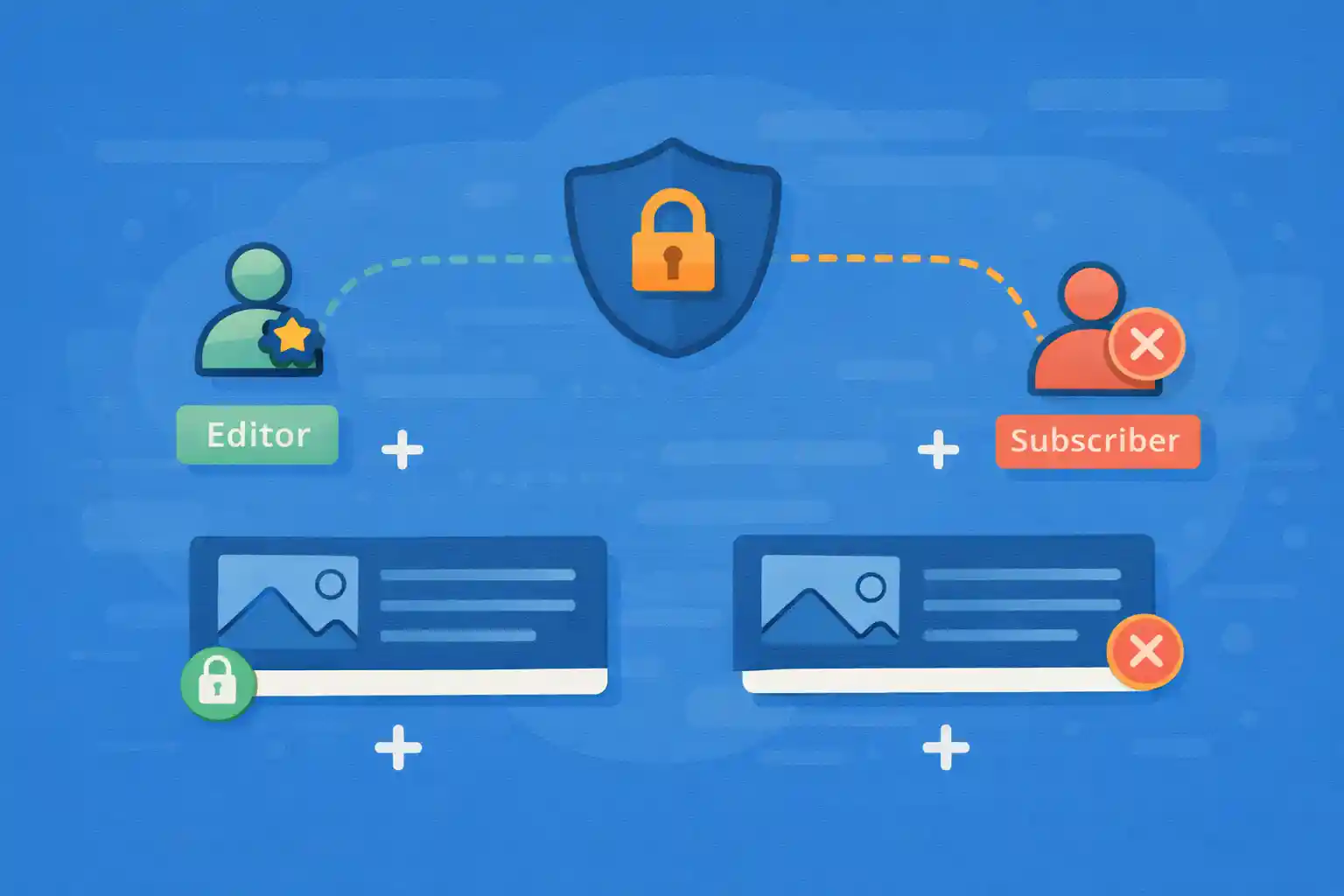
Membership plugins are powerful, but they can be overkill when you only need simple role-based access control:
hide sections from logged-out users, show downloads to subscribers, or restrict an entire page to editors/admins.
This guide shows a practical, code-first approach to role-based content control in WordPress:
- Restrict entire pages or templates by capability
- Hide partial content blocks inside posts/pages
- Create reusable helper functions and shortcodes (optional)
- Prevent content leaks (excerpt, REST, search)
Important Concept: Use Capabilities, Not Role Names
WordPress permissions are capability-based. Roles are just bundles of capabilities.
If you check roles everywhere, your code becomes fragile when roles change.
Prefer:
current_user_can( 'edit_posts' )current_user_can( 'read' )current_user_can( 'manage_options' )
This keeps logic stable even if you add custom roles later.
1) Restrict Entire Pages (Template-Level Guard)
If a page should be private to certain users, block access early.
This is the cleanest solution for “members-only page” use cases.
Redirect Logged-Out Users to Login
<?php
function wpct_require_capability( string $cap, string $redirect = '' ): void {
  if ( current_user_can( $cap ) ) {
    return;
  }

  if ( $redirect === '' ) {
    // Send logged-out users to login, logged-in users to home by default.
    if ( ! is_user_logged_in() ) {
      wp_safe_redirect( wp_login_url( wp_unslash( $_SERVER['REQUEST_URI'] ?? '' ) ) );
      exit;
    }

    wp_safe_redirect( home_url() );
    exit;
  }

  wp_safe_redirect( $redirect );
  exit;
}
Use it inside a page template:
<?php
// In a custom page template file (e.g., page-private.php)
wpct_require_capability( 'read' ); // any logged-in user
Or restrict to admins only:
<?php
wpct_require_capability( 'manage_options' );
2) Restrict Specific Pages by ID (No Template Needed)
If you want to lock down a few pages without creating templates, guard them in template_redirect.
<?php
add_action( 'template_redirect', function () {
  // Example: lock down these page IDs
  $restricted_pages = array( 123, 456 );

  if ( ! is_page( $restricted_pages ) ) {
    return;
  }

  // Example rule: subscribers+ can view (any logged-in user)
  if ( is_user_logged_in() ) {
    return;
  }

  wp_safe_redirect( wp_login_url( get_permalink() ) );
  exit;
} );
3) Hide Partial Content Inside Posts/Pages
Sometimes you want most of the page visible, but a section should be restricted (downloads, code, links).
Use a simple helper to conditionally output markup.
Reusable Conditional Wrapper
<?php
function wpct_if_can( string $cap, callable $render, callable $fallback = null ): void {
  if ( current_user_can( $cap ) ) {
    $render();
    return;
  }

  if ( $fallback ) {
    $fallback();
  }
}
Usage in templates:
<?php
wpct_if_can(
  'read',
  function () {
    echo '<p>Download link: <a href="/files/guide.pdf">guide.pdf</a></p>';
  },
  function () {
    echo '<p>Please log in to access downloads.</p>';
  }
);
4) Add a Lightweight Shortcode for Editors (Optional)
If editors manage content in the block editor, a shortcode can be practical.
This does not require a membership plugin.
Shortcode: [restricted cap="read"]...[/restricted]
<?php
add_shortcode( 'restricted', function ( $atts, $content = '' ) {
  $atts = shortcode_atts(
    array(
      'cap' => 'read',
      'show' => 'login', // login|hide|message
      'message' => 'Please log in to view this content.',
    ),
    $atts,
    'restricted'
  );

  $cap = sanitize_key( (string) $atts['cap'] );

  if ( $cap !== '' && current_user_can( $cap ) ) {
    return do_shortcode( (string) $content );
  }

  $mode = (string) $atts['show'];
  if ( $mode === 'hide' ) {
    return '';
  }

  if ( $mode === 'message' ) {
    return '<p>' . esc_html( (string) $atts['message'] ) . '</p>';
  }

  // Default: "login"
  if ( ! is_user_logged_in() ) {
    $url = wp_login_url( wp_unslash( $_SERVER['REQUEST_URI'] ?? '' ) );
    return '<p><a href="' . esc_url( $url ) . '">' . esc_html__( 'Log in to view this content', 'default' ) . '</a></p>';
  }

  return '<p>' . esc_html__( 'You do not have permission to view this content.', 'default' ) . '</p>';
} );
Example usage in the editor:
[restricted cap="read"]
Members-only download: https://example.com/file.zip
[/restricted]
5) Prevent Accidental Content Leaks
Role-based content control is not only about the template.
If you are restricting entire posts/pages, you should also consider:
- Search results
- REST API output
- RSS feeds
- Excerpts and archives
Exclude Restricted Pages from Search
If certain pages should be private, remove them from search results.
<?php
add_action( 'pre_get_posts', function ( $query ) {
  if ( is_admin() ) {
    return;
  }

  if ( $query->is_main_query() && $query->is_search() ) {
    // Example: exclude IDs of restricted pages
    $query->set( 'post__not_in', array( 123, 456 ) );
  }
} );
Hide Restricted Content from Feeds
<?php
add_action( 'pre_get_posts', function ( $query ) {
  if ( is_admin() ) {
    return;
  }

  if ( $query->is_main_query() && $query->is_feed() ) {
    // Example: exclude restricted pages/posts
    $query->set( 'post__not_in', array( 123, 456 ) );
  }
} );
Protect REST API for Specific Content
If you expose private content via the REST API, you must gate it.
One simple method is filtering prepared responses.
<?php
add_filter( 'rest_prepare_page', function ( $response, $post, $request ) {
  // Example: block restricted pages
  $restricted = array( 123, 456 );
  if ( in_array( (int) $post->ID, $restricted, true ) ) {
    if ( ! is_user_logged_in() ) {
      return new WP_Error(
        'rest_forbidden',
        __( 'You are not allowed to view this content.', 'default' ),
        array( 'status' => 401 )
      );
    }
  }

  return $response;
}, 10, 3 );
6) A Scalable Pattern: “Exclude From Public” Meta Flag
Hardcoding IDs is fine for small sites, but it does not scale.
A common pattern is a custom field like _members_only that determines visibility.
Then your restrictions become:
- Template guard checks the meta
- Search/feed filters exclude those posts
- REST filter blocks access
That creates a consistent rule across the site.
Common Mistakes to Avoid
- Relying only on hiding UI elements (security must be server-side)
- Checking role slugs everywhere instead of capabilities
- Forgetting feeds/search/REST output
- Using “private posts” incorrectly (private is a publishing status, not membership)
Summary
- Use capabilities for stable access control
- Restrict whole pages via
template_redirector templates - Restrict partial content using helpers or a lightweight shortcode
- Prevent leaks via search/feed/REST filtering
- For scale, switch from hardcoded IDs to a meta-flag rule
With these patterns, you can implement practical membership-like behavior in WordPress
without adding a full membership plugin—while keeping security and maintainability in mind.
🎨 Want to learn more? Visit our WordPress Customization Hub for tips and advanced techniques.


















