Disable WooCommerce Assets on Non-Shop Pages
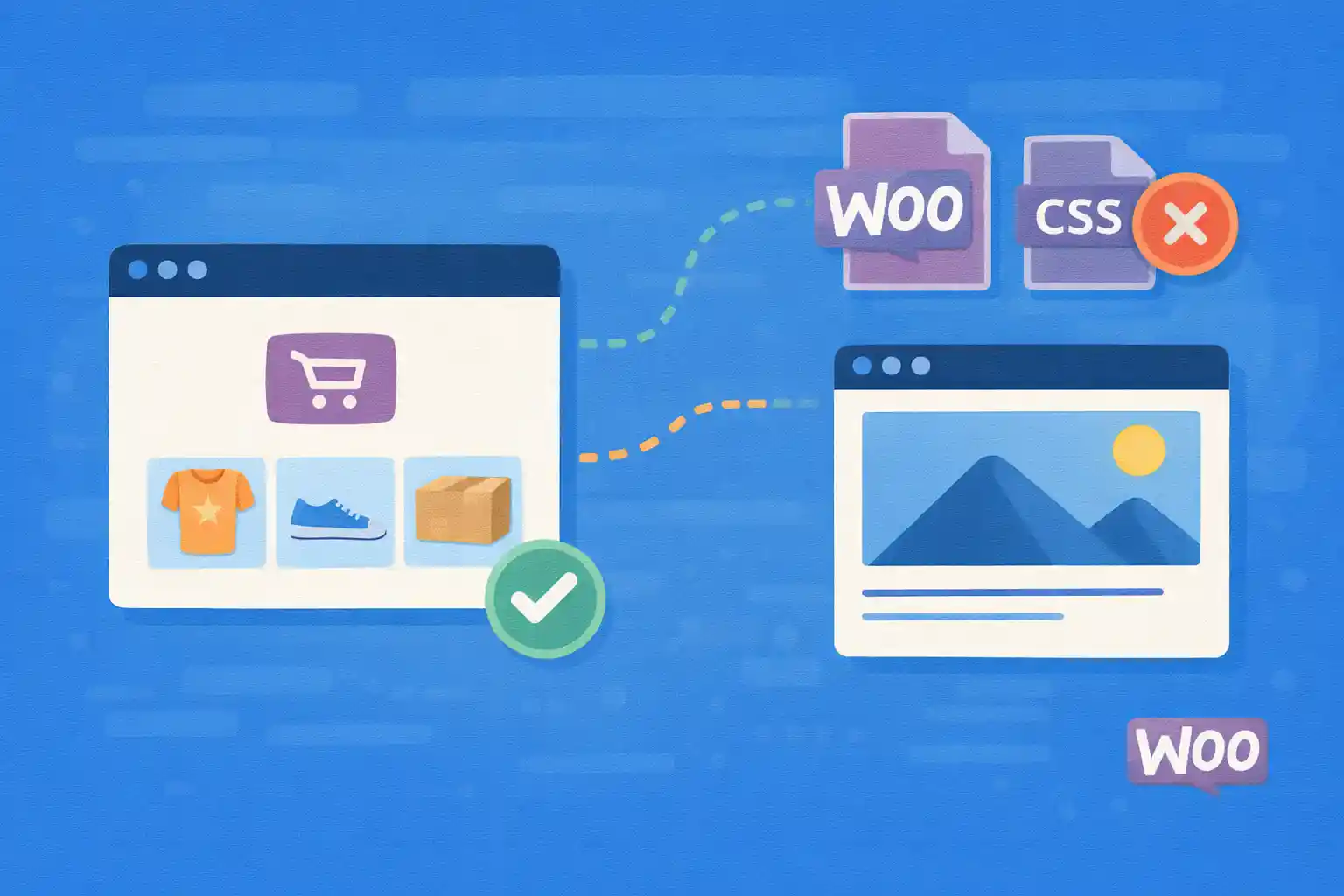
Disable WooCommerce Assets on Non-Shop Pages
WooCommerce loads CSS and JavaScript across the site by default. On content-heavy sites, this often becomes unnecessary
render-blocking CSS and extra JS work on pages that have nothing to do with shopping. The result is slower LCP/INP,
especially on mobile.
This article shows a code-based way to disable WooCommerce assets on non-shop pages safely, without relying on extra plugins.
What WooCommerce Loads (and Why It Matters)
Depending on your theme and Woo settings, WooCommerce may enqueue styles and scripts such as:
woocommerce-general,woocommerce-layout,woocommerce-smallscreenwoocommerce,wc-cart-fragments,wc-add-to-cart- Block assets when you use Woo blocks (Cart/Checkout blocks, Products block, etc.)
Your goal is not “remove everything everywhere.” Your goal is:
- Keep Woo assets on pages that need them (shop/product/cart/checkout/account)
- Remove Woo assets on pages that don’t
- Avoid breaking mini-cart, add-to-cart, or block-based templates
Best-Practice Strategy
Use wp_enqueue_scripts at a late priority and dequeue Woo assets when the current request is not a Woo page.
This is the safest approach because it runs after plugins/themes enqueue their styles/scripts.
1) Disable Default Woo Styles on Non-Woo Pages
<?php
add_action( 'wp_enqueue_scripts', function () {
  if ( is_admin() ) {
    return;
  }

  // Keep Woo assets on WooCommerce-related pages.
  $is_woo_page = function_exists( 'is_woocommerce' ) && is_woocommerce();
  $is_cart     = function_exists( 'is_cart' ) && is_cart();
  $is_checkout = function_exists( 'is_checkout' ) && is_checkout();
  $is_account  = function_exists( 'is_account_page' ) && is_account_page();

  if ( $is_woo_page || $is_cart || $is_checkout || $is_account ) {
    return;
  }

  // Dequeue WooCommerce styles.
  wp_dequeue_style( 'woocommerce-general' );
  wp_dequeue_style( 'woocommerce-layout' );
  wp_dequeue_style( 'woocommerce-smallscreen' );

  // Some themes/plugins enqueue extra Woo styles.
  wp_dequeue_style( 'woocommerce-inline' );
}, 99 );
This removes common Woo styles from non-shop pages while keeping them where Woo templates are used.
2) Disable Woo Scripts on Non-Woo Pages
Next, remove JS that usually isn’t needed outside Woo pages.
<?php
add_action( 'wp_enqueue_scripts', function () {
  if ( is_admin() ) {
    return;
  }

  $is_woo_page = function_exists( 'is_woocommerce' ) && is_woocommerce();
  $is_cart     = function_exists( 'is_cart' ) && is_cart();
  $is_checkout = function_exists( 'is_checkout' ) && is_checkout();
  $is_account  = function_exists( 'is_account_page' ) && is_account_page();

  if ( $is_woo_page || $is_cart || $is_checkout || $is_account ) {
    return;
  }

  // Dequeue common Woo scripts.
  wp_dequeue_script( 'woocommerce' );
  wp_dequeue_script( 'wc-add-to-cart' );
  wp_dequeue_script( 'wc-cart-fragments' );
  wp_dequeue_script( 'wc-checkout' );
  wp_dequeue_script( 'wc-single-product' );
  wp_dequeue_script( 'wc-add-to-cart-variation' );

  // If a theme enqueued these on all pages, you can remove them too.
  wp_dequeue_script( 'js-cookie' );
}, 99 );
This is a strong baseline, but you must consider whether your site uses Woo features outside Woo pages (see below).
3) Mini-Cart and Cart Fragments
If your header includes a mini-cart that updates dynamically, Woo uses wc-cart-fragments to refresh it.
Removing it can be fine if your mini-cart is not present on non-shop pages or you accept non-updating counts.
If you want a more targeted approach, only keep wc-cart-fragments on pages where a cart widget is actually shown.
A simple pragmatic compromise is: keep it on pages where your header includes cart UI, remove it elsewhere.
<?php
add_action( 'wp_enqueue_scripts', function () {
  if ( is_admin() ) {
    return;
  }

  $is_woo_page = function_exists( 'is_woocommerce' ) && is_woocommerce();
  $is_cart     = function_exists( 'is_cart' ) && is_cart();
  $is_checkout = function_exists( 'is_checkout' ) && is_checkout();
  $is_account  = function_exists( 'is_account_page' ) && is_account_page();

  // Example: keep cart fragments only on Woo pages.
  if ( ! ( $is_woo_page || $is_cart || $is_checkout || $is_account ) ) {
    wp_dequeue_script( 'wc-cart-fragments' );
  }
}, 99 );
4) Block-Based Cart/Checkout (Important)
If you use WooCommerce blocks (Cart/Checkout blocks, Products blocks, mini-cart block),
Woo may enqueue different assets from the classic shortcode templates.
In that case, rely on page detection that matches your setup:
- Classic:
is_cart(),is_checkout(),is_woocommerce() - Blocks: your cart/checkout pages are still “cart” and “checkout” in most setups, but assets can vary
If you use Woo blocks inside normal pages or posts, you may need to keep Woo assets on those specific pages too.
A practical solution is allowlisting by page ID.
5) Allowlist Pages That Use Woo Shortcodes or Blocks
If you embed Woo features on non-shop pages (a product grid on the homepage, add-to-cart buttons on landing pages),
don’t disable Woo assets there. Use an allowlist.
<?php
add_action( 'wp_enqueue_scripts', function () {
  if ( is_admin() ) {
    return;
  }

  $allow_ids = array( 10, 25 ); // Pages that include Woo shortcodes/blocks.
  if ( is_page( $allow_ids ) ) {
    return;
  }

  $is_woo_page = function_exists( 'is_woocommerce' ) && is_woocommerce();
  $is_cart     = function_exists( 'is_cart' ) && is_cart();
  $is_checkout = function_exists( 'is_checkout' ) && is_checkout();
  $is_account  = function_exists( 'is_account_page' ) && is_account_page();

  if ( $is_woo_page || $is_cart || $is_checkout || $is_account ) {
    return;
  }

  wp_dequeue_style( 'woocommerce-general' );
  wp_dequeue_style( 'woocommerce-layout' );
  wp_dequeue_style( 'woocommerce-smallscreen' );

  wp_dequeue_script( 'woocommerce' );
  wp_dequeue_script( 'wc-add-to-cart' );
  wp_dequeue_script( 'wc-cart-fragments' );
}, 99 );
6) Alternative: Disable WooCommerce Styles Globally (Then Add Back Where Needed)
WooCommerce provides a filter to disable its default styles entirely. This can be useful if your theme
fully customizes Woo styling and you want total control.
<?php
add_filter( 'woocommerce_enqueue_styles', '__return_empty_array' );
This disables Woo’s default styles everywhere, including shop pages.
Only use this if you already provide your own Woo CSS.
How to Verify It’s Working
- Open DevTools → Network → filter “css” and “wc-” / “woocommerce”
- Confirm Woo assets are gone on blog pages, homepage, static pages (non-shop)
- Confirm shop/product/cart/checkout still function correctly
- Test add-to-cart, variation selection, mini-cart updates, and checkout validation
Common Mistakes to Avoid
- Dequeuing too early (your code runs before Woo enqueues assets). Use late priority like
99or100. - Disabling
wc-cart-fragmentswhile relying on dynamic cart count in the header. - Forgetting Woo shortcodes/blocks embedded on non-shop pages.
- Only removing CSS and leaving heavy scripts (or vice versa).
Summary
- Dequeue Woo styles/scripts on non-Woo pages using
wp_enqueue_scriptsat late priority. - Keep assets on
is_woocommerce(),is_cart(),is_checkout(), andis_account_page(). - Use an allowlist for pages that embed Woo shortcodes/blocks.
- Verify mini-cart and checkout behaviors after changes.
Done carefully, this approach reduces unused CSS/JS, improves Core Web Vitals, and keeps your WooCommerce flows stable.
🎨 Want to learn more? Visit our WordPress Customization Hub for tips and advanced techniques.


















