How to Disable REST API Endpoints Selectively
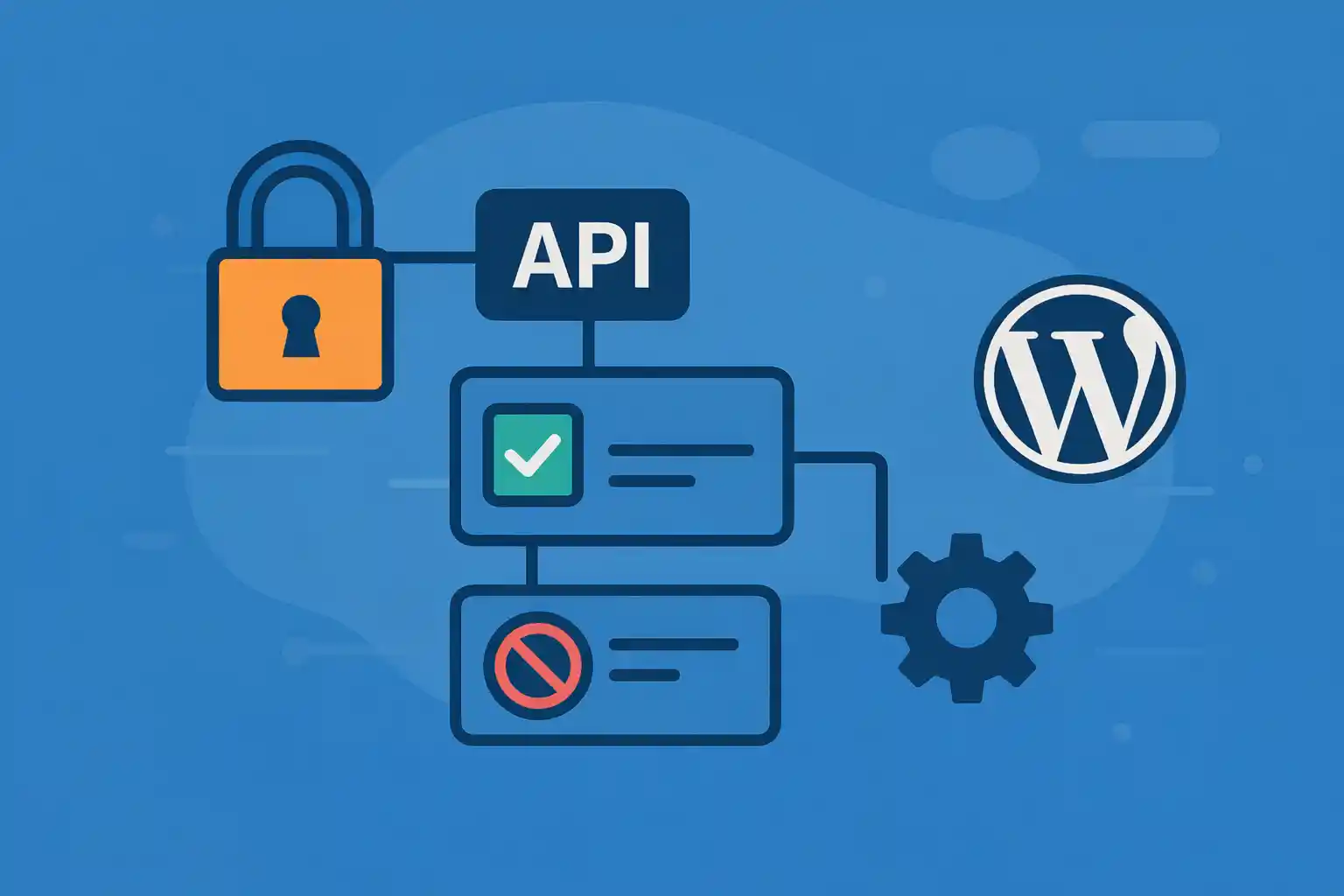
How to Disable REST API Endpoints Selectively
The WordPress REST API is essential for the block editor, mobile apps, and many plugins.
However, not every endpoint needs to be publicly accessible.
Exposing unused endpoints can increase attack surface, leak data, or simply be unnecessary.
This article explains how to disable REST API endpoints selectively using code,
without breaking Gutenberg, core features, or legitimate integrations.
Why You Should Not Disable the REST API Entirely
A common mistake is trying to “turn off” the REST API globally.
This almost always breaks:
- Block editor (Gutenberg)
- Media uploads
- Navigation and site editor
- Many modern plugins
Best practice is selective restriction, not full removal.
Understand How REST API Endpoints Are Structured
REST API endpoints are grouped by namespaces, for example:
/wp-json/wp/v2/→ core posts, pages, users, media/wp-json/wp/v2/users→ user data (sensitive)/wp-json/wc/v3/→ WooCommerce/wp-json/custom-namespace/v1/→ custom plugins/themes
Selective control means:
- Restrict by endpoint
- Restrict by namespace
- Restrict by authentication state
- Restrict by HTTP method
Recommended Hook: rest_authentication_errors
The safest and most flexible hook is rest_authentication_errors.
It runs before the endpoint callback executes and allows you to block requests cleanly.
1) Block REST API Access for Non-Logged-In Users (Except Core)
This pattern allows REST API access for logged-in users,
but blocks unauthenticated requests except for essential endpoints.
<?php
add_filter( 'rest_authentication_errors', function ( $result ) {

  if ( ! is_null( $result ) ) {
    return $result;
  }

  // Allow logged-in users
  if ( is_user_logged_in() ) {
    return null;
  }

  $request_uri = $_SERVER['REQUEST_URI'] ?? '';

  // Allow core endpoints needed for public features
  $allowed = array(
    '/wp-json/wp/v2/posts',
    '/wp-json/wp/v2/pages',
  );

  foreach ( $allowed as $path ) {
    if ( strpos( $request_uri, $path ) === 0 ) {
      return null;
    }
  }

  return new WP_Error(
    'rest_forbidden',
    __( 'REST API access is restricted.', 'default' ),
    array( 'status' => 401 )
  );
} );
This keeps public content accessible while blocking unnecessary exposure.
2) Disable Specific Endpoints (Example: Users Endpoint)
The users endpoint is often unnecessary for front-end usage
and may expose usernames.
<?php
add_filter( 'rest_authentication_errors', function ( $result ) {

  if ( ! is_null( $result ) ) {
    return $result;
  }

  $route = $_SERVER['REQUEST_URI'] ?? '';

  if ( strpos( $route, '/wp-json/wp/v2/users' ) === 0 ) {
    if ( ! current_user_can( 'list_users' ) ) {
      return new WP_Error(
        'rest_users_forbidden',
        __( 'User endpoint disabled.', 'default' ),
        array( 'status' => 403 )
      );
    }
  }

  return null;
} );
This ensures only administrators (or roles with list_users) can access user data.
3) Disable Entire Namespaces
If you know a plugin namespace is unused on the front end,
you can block the whole namespace.
<?php
add_filter( 'rest_authentication_errors', function ( $result ) {

  if ( ! is_null( $result ) ) {
    return $result;
  }

  $uri = $_SERVER['REQUEST_URI'] ?? '';

  // Block WooCommerce REST API for non-admins
  if ( strpos( $uri, '/wp-json/wc/' ) === 0 ) {
    if ( ! current_user_can( 'manage_woocommerce' ) ) {
      return new WP_Error(
        'rest_wc_forbidden',
        __( 'WooCommerce REST API disabled.', 'default' ),
        array( 'status' => 403 )
      );
    }
  }

  return null;
} );
This is safer than unregistering routes, because plugins may still expect them internally.
4) Restrict by HTTP Method (Read vs Write)
Sometimes you want public GET access but block write operations.
<?php
add_filter( 'rest_authentication_errors', function ( $result ) {

  if ( ! is_null( $result ) ) {
    return $result;
  }

  $method = $_SERVER['REQUEST_METHOD'] ?? 'GET';

  if ( $method !== 'GET' && ! is_user_logged_in() ) {
    return new WP_Error(
      'rest_write_forbidden',
      __( 'Write access requires authentication.', 'default' ),
      array( 'status' => 401 )
    );
  }

  return null;
} );
This is useful for headless-style read-only setups.
5) Disable Endpoints by Unregistering Routes (Advanced)
You can also unregister routes directly using rest_endpoints.
This should be done carefully.
<?php
add_filter( 'rest_endpoints', function ( $endpoints ) {

  // Remove users endpoint entirely
  unset( $endpoints['/wp/v2/users'] );
  unset( $endpoints['/wp/v2/users/(?P<id>[\\d]+)'] );

  return $endpoints;
} );
Use this only when you are certain nothing depends on the endpoint.
Blocking via authentication is usually safer.
6) Keep Gutenberg and Core Working
Always ensure these remain accessible for logged-in users:
/wp-json/wp/v2/block-types/wp-json/wp/v2/settings/wp-json/wp/v2/media
Blocking these breaks the editor.
When in doubt, test editor behavior first.
How to Test Your Restrictions
- Open
/wp-json/in a private window - Test logged-in vs logged-out requests
- Check block editor, media upload, and post saving
- Review server logs for blocked requests
Common Mistakes to Avoid
- Disabling REST API globally
- Blocking endpoints used by Gutenberg
- Unregistering routes without testing plugins
- Returning
200with error messages instead of proper status codes
Summary
- Never disable the REST API entirely
- Use
rest_authentication_errorsfor safe, selective blocking - Restrict sensitive endpoints like users
- Block write methods for unauthenticated users
- Test editor and plugin behavior carefully
Selective REST API control improves security and clarity
without sacrificing modern WordPress functionality—when done deliberately.
🎨 Want to learn more? Visit our WordPress Customization Hub for tips and advanced techniques.


















